UTCTF2026 - Watson
Write-up | UTCTF 2026 | Watson
Description
We need your help again agent. The threat actor was able to escalate privileges. We’re in the process of containment and we want you to find a few things on the threat actor. The triage is the same as the one in “Landfall”. Can you read the briefing and solve your part of the case?
Artifacts/Infrastructures
Artifacts
Solution paths
Just like the previous challenge - Landfall - of this challenge series (Landfall - Watson - Sherlockk), we are provided briefing.txt which includes the questions needed to be answered, as well as how-to-solve.txt which informs how you can get the flag.
The difference is there are two checkpoints: A and B - resulting in two ZIP files, instead of one, so of course, we have two questions:
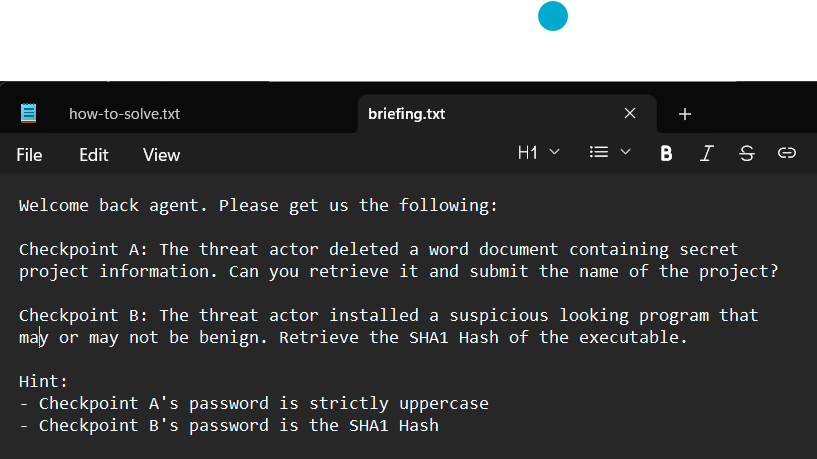
Checkpoint A:
The threat actor deleted a word document containing secret project information. Can you retrieve it and submit the name of the project?
Checkpoint B:
The threat actor installed a suspicious looking program that may or may not be benign. Retrieve the SHA1 Hash of the executable.
… and two hints:
- Checkpoint A’s password is strictly uppercase
- Checkpoint B’s password is the SHA1 Hash
In how-to-solve.txt, basically the flag was divided into two ZIP files, and we just need to connect that two parts with a hyphen in the middle in order to get the flag:
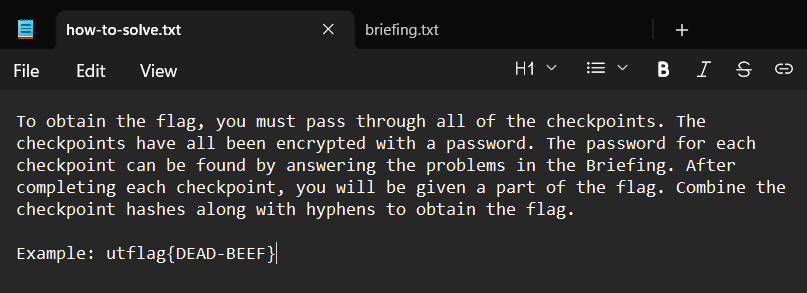
Let’s get into the challenge with checkpoint A first:
The threat actor deleted a word document containing secret project information. Can you retrieve it and submit the name of the project?
The keyword here is “deleted”, “word document”, and “secret project”.
About “deleted”, the first thing that came to my mind was to check the Recycle Bin folder (named $Recycle.Bin).
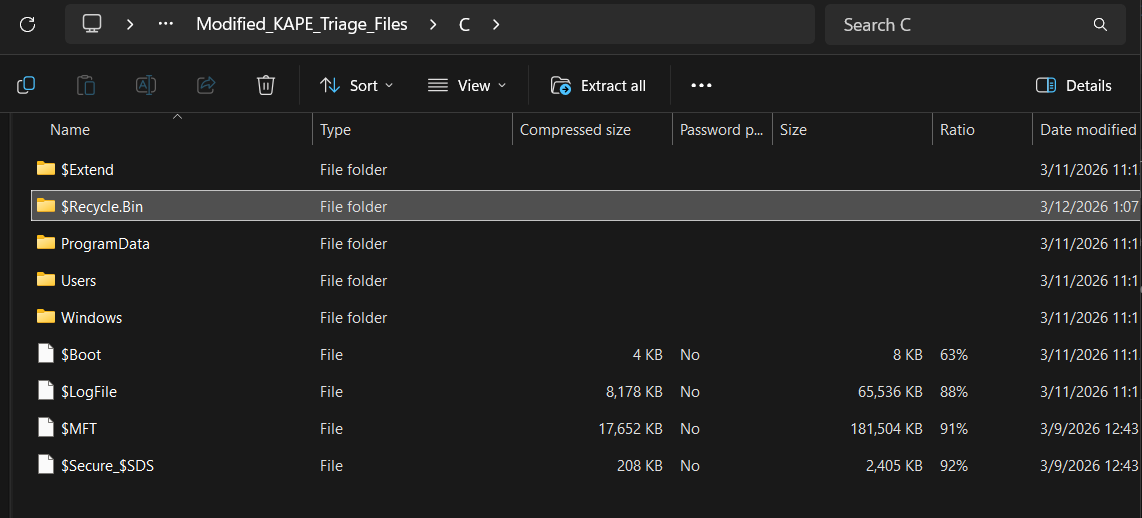
Inside it, there were two more folders:
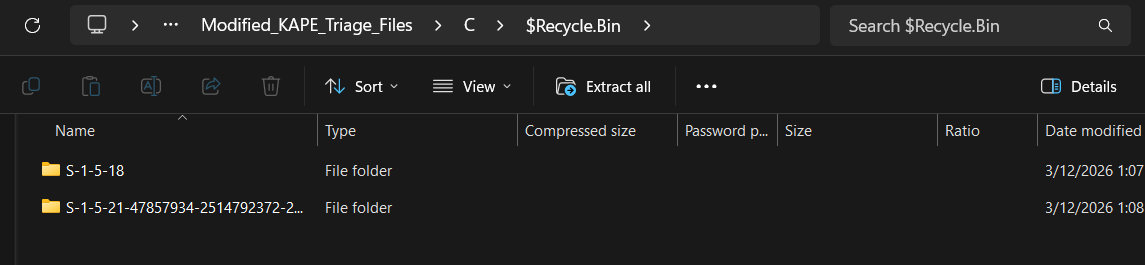
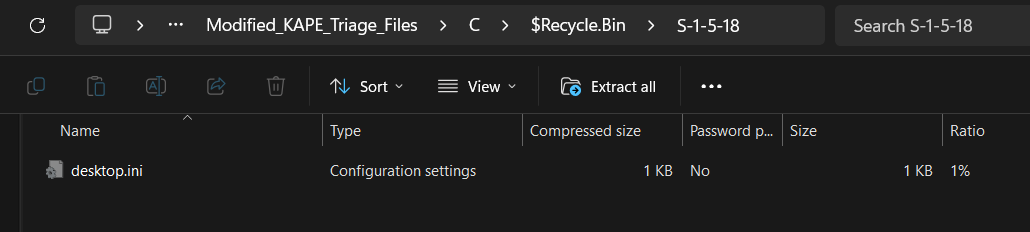
The first one, S-1-5-18, just contained desktop.ini, so there was nothing interesting there:
The second one, S-1-5-21-47857934-2514792372-2285641962-500, on the other hand, had a bunch of fun stuff:
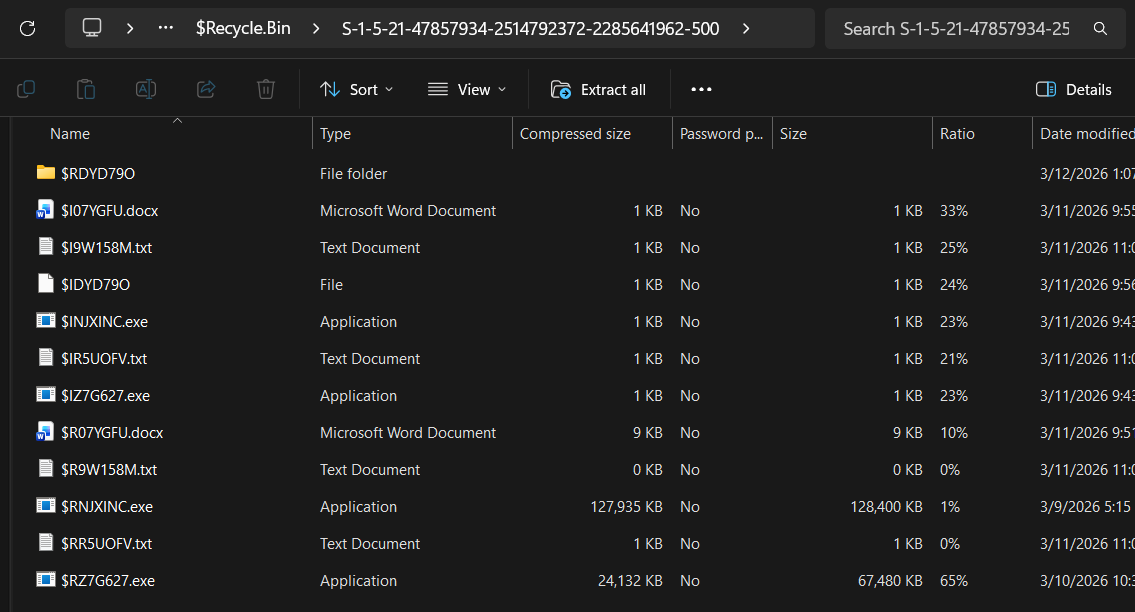
Notice that two .docx files appeared here: $I07YGFU.docx and $R07YGFU.docx. Therefore, the answer for checkpoint A should be one of these two files.
One more thing to mention: $I07YGFU.docx and $R07YGFU.docx both had the common part 07YGFU in the name. I did some research about this and came up with a new piece of knowledge:
When deleting a file, Windows does not simply put the file into another place. Instead, the OS creates two more files - with the same extension and a kind of random code - that link to the original file. We determine the type of each one by the prefix:
$R: “R” Stands for “Recovery” or “Resources”. This file has all of the content from the deleted file. If you try to rename$Rfile with the initial name and keep the same extension as the original one, you can use it normally.$I: “I” stands for “Information”. This file has the Metadata of the deleted file, such as path, the time when the file got deleted, the size, etc. Without$Ifile, if you want to recover the file, Windows does not know where to put the file back.
Based on above, I opened $R07YGFU.docx to see the content, and it worked:
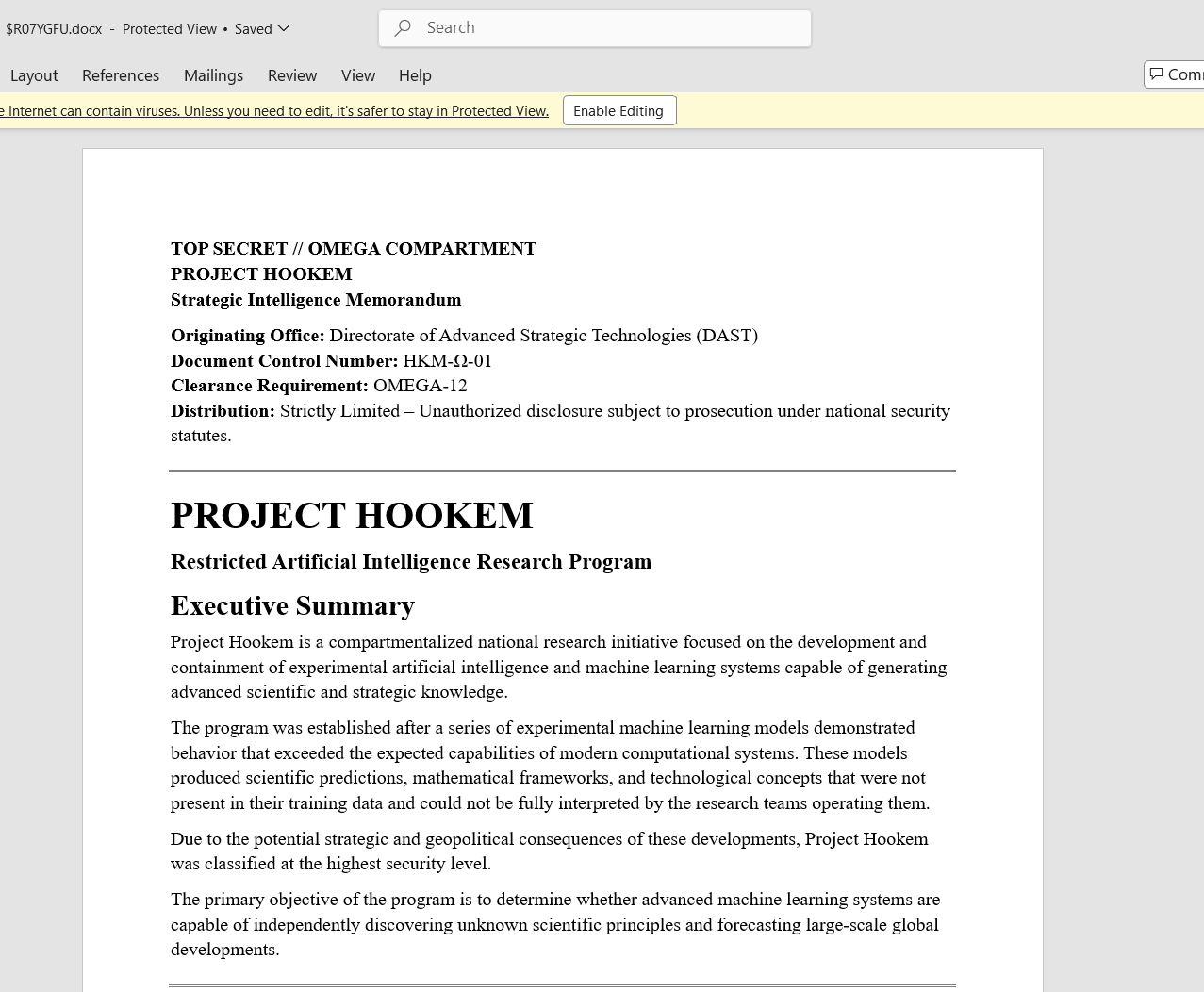
The name of the project - which is also the answer for checkpoint A - is “HOOKEM”. The first hint implied that the name is “strictly uppercase”, so I used the exact phrase “HOOKEM” as the password to extract content(s) in checkpointA.zip. Fortunately, “HOOKEM” is the correct password and I got the first half of the challenge:
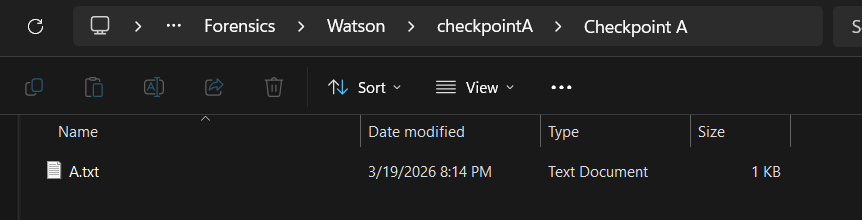

The first part of the flag is pr1v473_3y3
Let’s start solving the second checkpoint:
The threat actor installed a suspicious looking program that may or may not be benign. Retrieve the SHA1 Hash of the executable.
- “benign”: pleasant and kind; not harmful or severe*.
If I was not mistaken, I needed to find out the innocent-looking program.
After wandering around the C folder, I found a directory that held many files that acquired names related to apps (.exe), but with extension pf. They were all inside the path C\Windows\prefetch
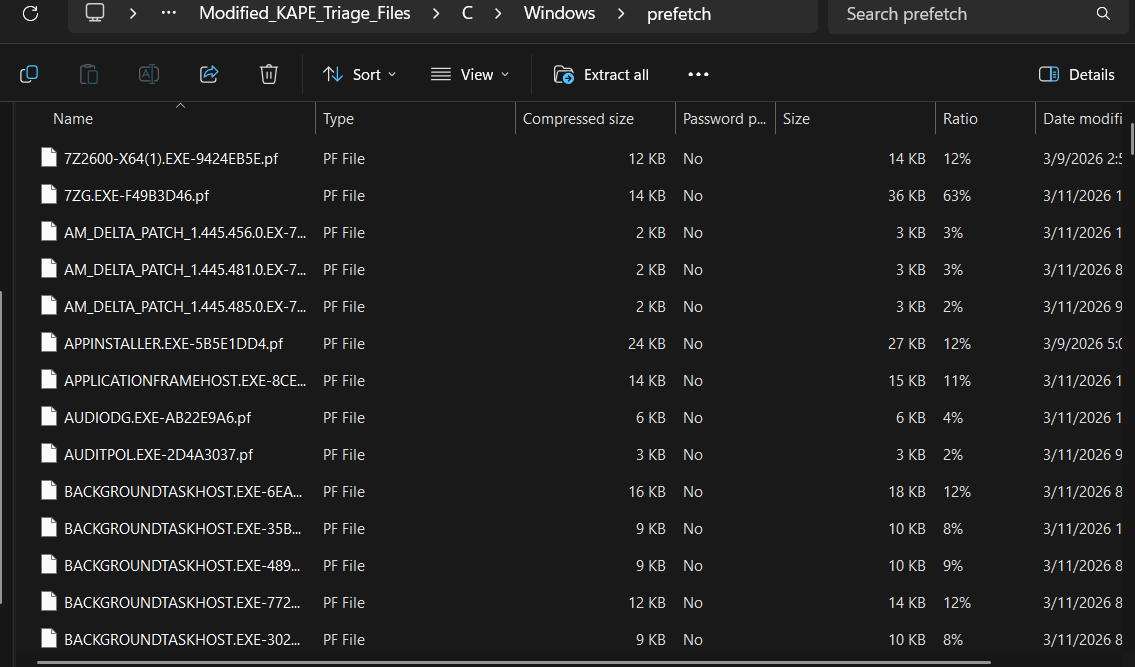
.pf files are Windows Prefetch files used to speed up application loading.
- When running a new program for the first time, Windows will monitor how that program loads data from disk into RAM. After that, the OS records information such as files, source code and essential data that the program requests in order to run. These pieces of info will be stored in a
.pffile. - The next time you run that program, Windows will find the
.pfbelongs to the program, read it and load needed data into RAM before the program really requests them => Program startup is faster.
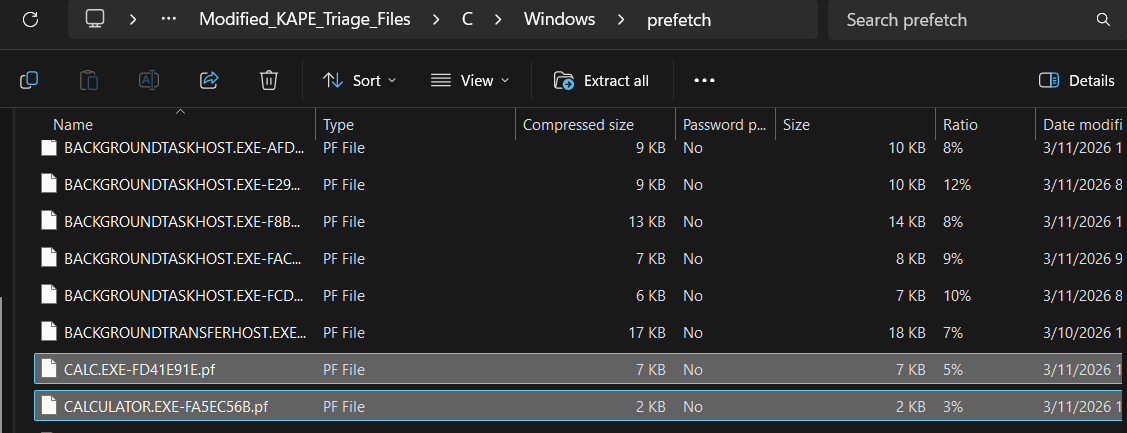
Maybe that suspicious, “benign” program run at least once, so I tried my best to find it among these .pf files. After a while, I finally zoned out most programs to got the last two suspects - CALC.exe and CALCULATOR.exe. There’s no way Windows has two calculator programs in default, right?:
To know more information about programs that have run in the computer, including CALC.exe and CALCULATOR.exe, Amcache should become the top priority for us to exploit.
AmCache - Amcache.hve (Application Activity Cache) is a forensic artifact in Windows operating systems.**
- AmCache tracks metadata about executables and other files that have been run on (or interacted with) the system.
- AmCache serves as part of Windows’ Application Compatibility Framework (AppCompat), which helps ensure programs run smoothly on the system by recording information about program execution.
The Amcache file is usually in AppCompat folder inside Windows directory. In this challenge, the path was: C\Windows\AppCompat\Programs.
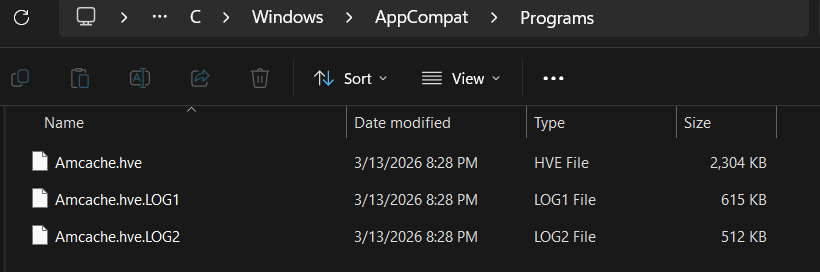
From Amcache.hve, we can export all the intel to a .csv file in order to read easily in Excel. To do so, we need to utilize AmcacheParser - A tool among various tools in Eric Zimmerman tool kit.
Before running AmcacheParser, open Windows PowerShell and move to the folder that has AmcacheParser.exe, then run:
.\AmcacheParser.exe -f "<1>" --csv "<2>"
Replace <1> with the path to Amcache.hve and <2> with the path to save the .csv output files.
Then, open the .csv file having the phrase “Amcache_UnassociatedFileEntries”.
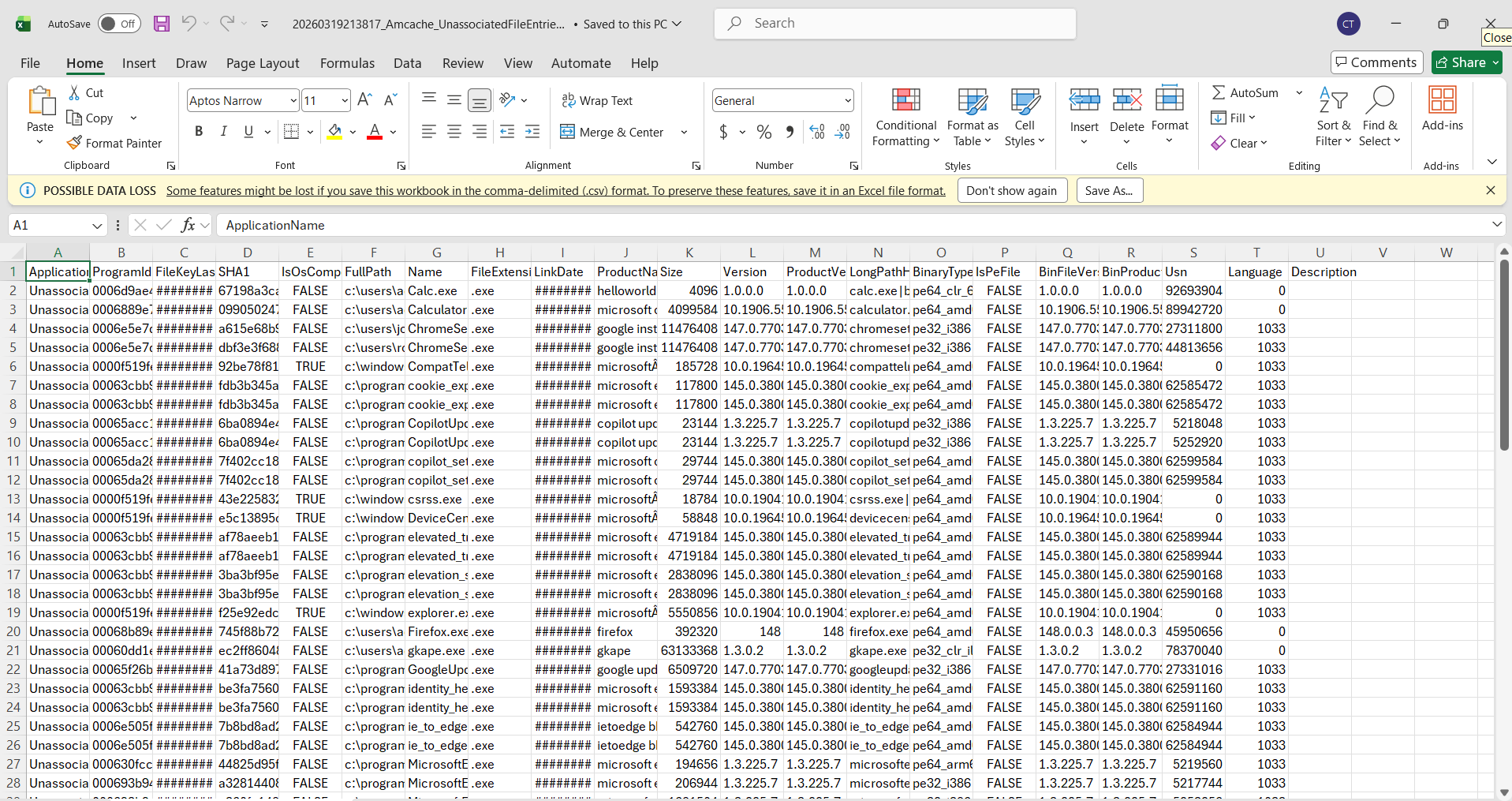
As you can see, both Calc.exe and Calculator.exe were on top of the list, so I was glad that I did not have to Ctrl + F to find these.
Move your look a little bit to the left of the “Name” column, then you will see the SHA1 column. I used the SHA1 of Calc.exe first to extract checkpointB.zip, and it was the correct password!
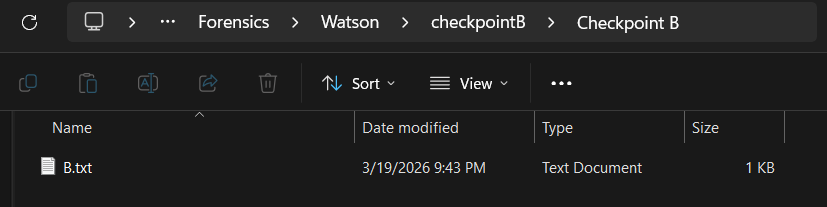

The second part of the flag is m1551n6_l1nk.
Flag
utctf{pr1v473_3y3-m1551n6_l1nk}
Commands/Tools used
Commands/Tools Purpose(s) AmcacheParser Parse the Amcache.hvehive to extract program execution history, metadata, and SHA1 hashes into CSV format.
Key takeaways/Lessons learned
- Executed programs usually leave “footprints”: To identify suspicious processes or activities, investigate in folders or files related to saving metadata or history, such as Prefetch or Amcache. Remember combine sources of information for better analysis (for example, find process name in Prefetch, and SHA1 in Amcache).