BlueTeamLabs - Memory Analysis - Ransomware
Write-up | BlueTeamLabs | Memory Analysis - Ransomware
The link to the challenge is here
Description
The Account Executive called the SOC earlier and sounds very frustrated and angry. He stated he can’t access any files on his computer and keeps receiving a pop-up stating that his files have been encrypted. You disconnected the computer from the network and extracted the memory dump of his machine and started analyzing it with Volatility. Continue your investigation to uncover how the ransomware works and how to stop it!
Initial look
We are provided a infected.vmem file. This tells that we will need volatility. In this chall, I’m gonna specifically use volatility3 to solve the challenge, so in order to follow, I recommend having it installed in your computer. This chall has 7 questions. Now let’s begin.
Walkthrough
1. Run “vol.py -f infected.vmem –profile=Win7SP1x86 psscan” that will list all processes. What is the name of the suspicious process?
Format: @ProcessName
Before getting started, look at the command that the author provides us first. This command is used in vol, not vol3, so we need some minor changes. The command that we will need to run is:
sudo python3 /opt/volatility3/vol.py -f infected.vmem windows.psscan | sort -k 9 > psscan_output.txt
windows.psscanstands for “process scanning” (or so I thought).sort -k 9:-khere means “k(olumn)” (just simply remember that, no need to find what it actually means ^^). Basically, it will sort the output based on the 9th column, which is theCreateTimecolumn. We want to see the processes in the time order. However, to make sure, please runsudo python3 /opt/volatility3/vol.py -f infected.vmem windows.psscanfirst to see theCreateTimeis of which column.psscan_output.txt: Output a.txtfile for easier analysis. You can change the filename based on your preference.
Here is the result:
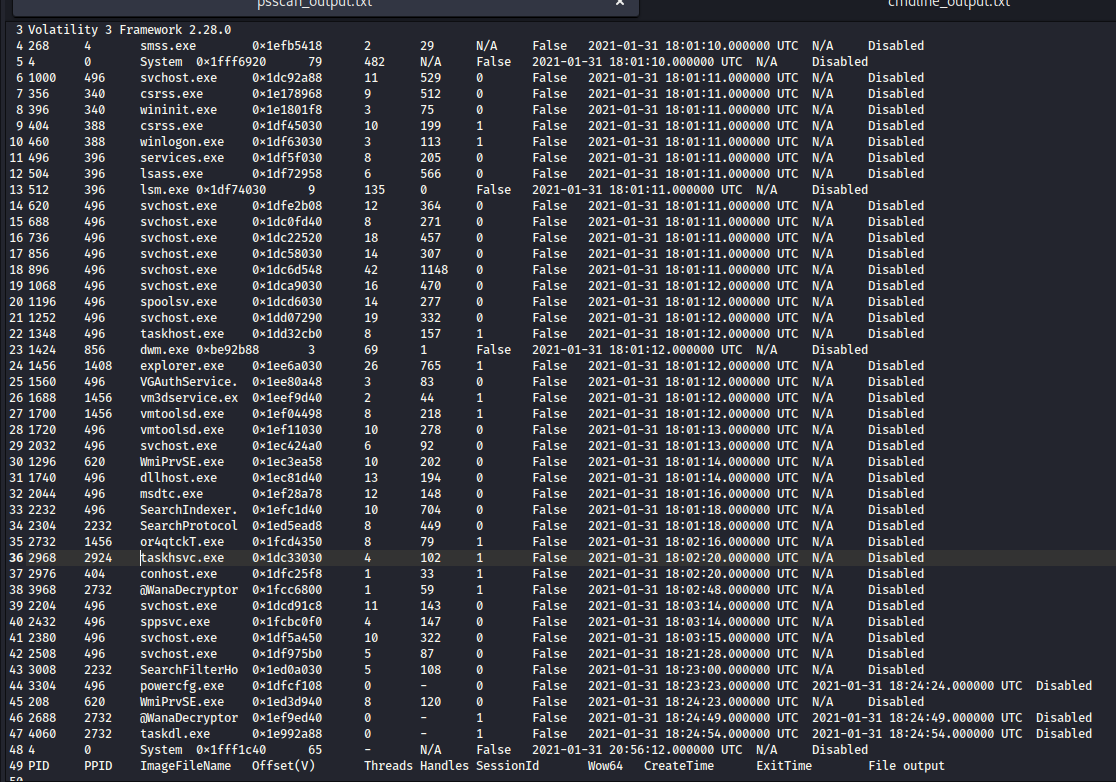
Take a quick look and we can see that there’s a suspicious task name @WanaDecryptor. This is the answer of the first question.
2. What is the parent process ID for the suspicious process?
Format: PPID
As we can see, the answer’s format is PPID, so we will have to take a look at the PPID column.

The answer is 2732
3. What is the initial malicious executable that created this process?
Format: ProcessName.exe
In the previous question, we know the PPID of the ransomware. That is enough to find the real culprit behind the attack.
To solve this question, we need grep command: grep "2732" psscan_output.txt As I said in question 1, you can replace “psscan_output” by the name you named the output file.
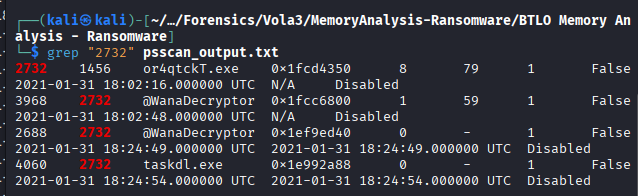
The answer is or4qtckT.exe
4. If you drill down on the suspicious PID (vol.py -f infected.vmem –profile=Win7SP1x86 psscan | grep (PIDhere)), find the process used to delete files
Format: ProcessName.exe
In the image I provided in the last question, there’s still one more process that we need to pay attention:

I took a quick search on Google and found this:

Now we got the context: this is a WannaCry resemblance, and taskdl.exe is a part of this attack. I asked Gemini about this, and these are what I learned:
taskdl.exe(Task deleter) is a trusted process from Microsoft Windows. It’s a part of Task Scheduler, and its function is to delete expired and redundant Scheduled Tasks.- It is usually run in
AdministratororSYSTEMprivilege. As the result, it can usually bypass old AVs. - The location of this task is
C:\Windows\System32\taskdl.exe - Any
taskdl.exethat does not come fromC:\Windows\System32\is fake, and need to be analysed. - In Ransomware context, it helps deleted unencrypted (original) files of the victim after the encryption process is completed, temp files and scripts, and recovering copies of original files. This is also known as “Living off the Land (LotL)”.
The answer is taskdl.exe.
5. >Find the path where the malicious file was first executed
Format: Drive:\path...ProcessName.exe
There is a super useful vol3 plugin for Windows that helps us a lot in this scenario. It is windows.cmdline
The command to run is:
sudo python3 /opt/volatility3/vol.py -f infected.vmem windows.cmdline > <output_file>.txt | grep "or4qtckT.exe"
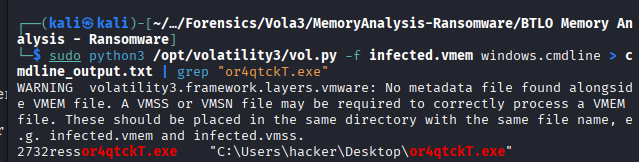
The answer is C:\Users\hacker\Desktop\or4qtckT.exe
6. >Can you identify what ransomware it is? (Do your research!)
Format: (I forgot, sorry :( ))
The answer we need is already in question 4: WannaCry
7. >What is the filename for the file with the ransomware public key that was used to encrypt the private key? (.eky extension)
Format: FileName.eky
Now we need to know a new command, which is:
sudo python3 /opt/volatility3/vol.py -f infected.vmem windows.handles --pid <pid>
The windows.handles will show all “Handles” that a process (determined by the <pid> parameter) has.
If a process needs access to system resources, it needs Windows to provide “Handles” to manipulate things such as Files, Registry Keys, Mutant, etc.
You should export the output in a .txt file like previous questions for smooth analysis.
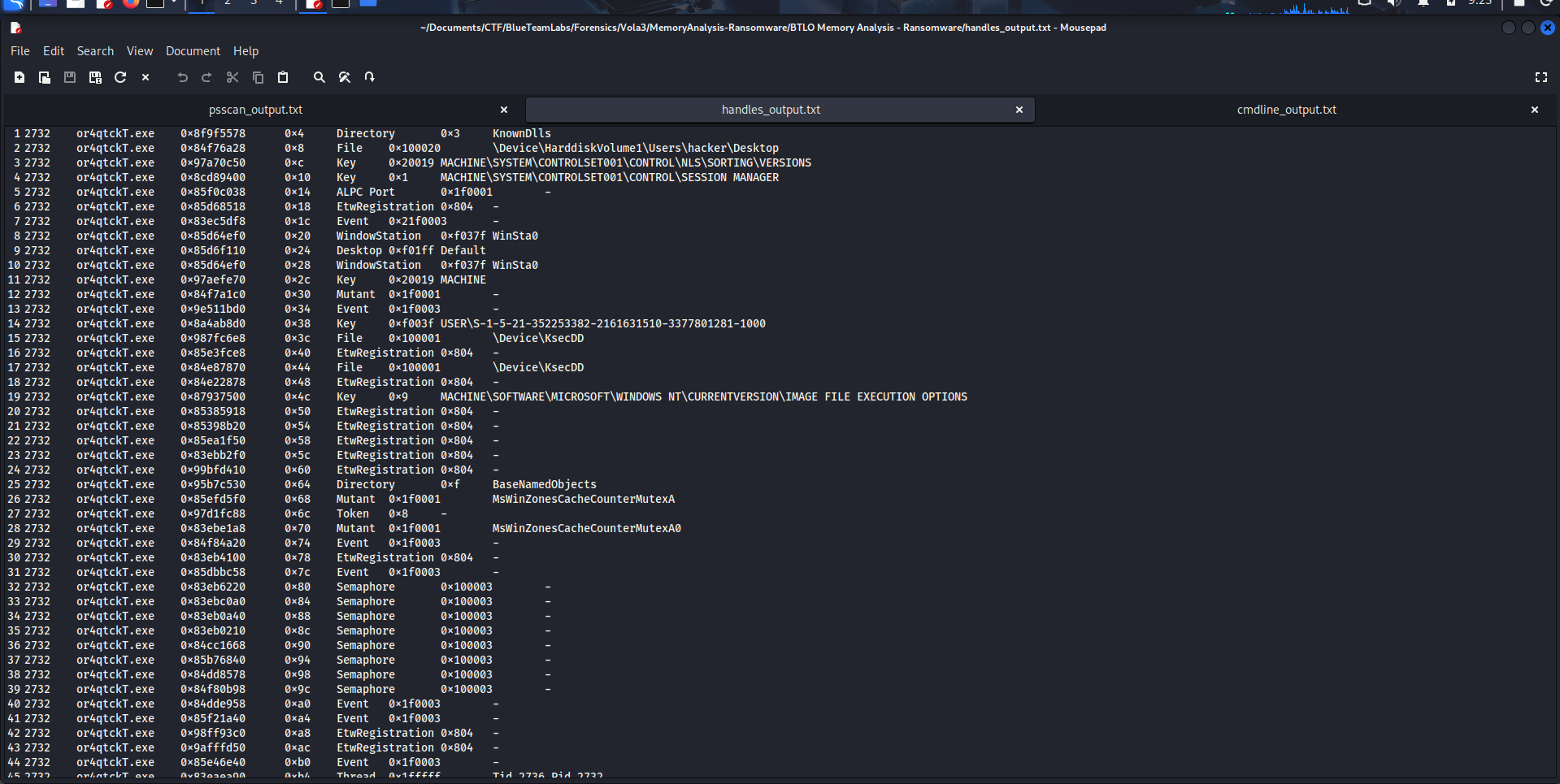
Now use grep ".eky" <.txt> to have the answer:

The answer is 00000000.eky.
P/s: This is one of the longest write-ups I’ve ever written. If you have been with me to this end, thank you so much!.